Review quotation and transaction details
Summary:
Find a project’s quotation and review recorded transactions.
Before you start:
You need access to billing information. Have the project, quotation, or invoice reference ready.
Review a quotation
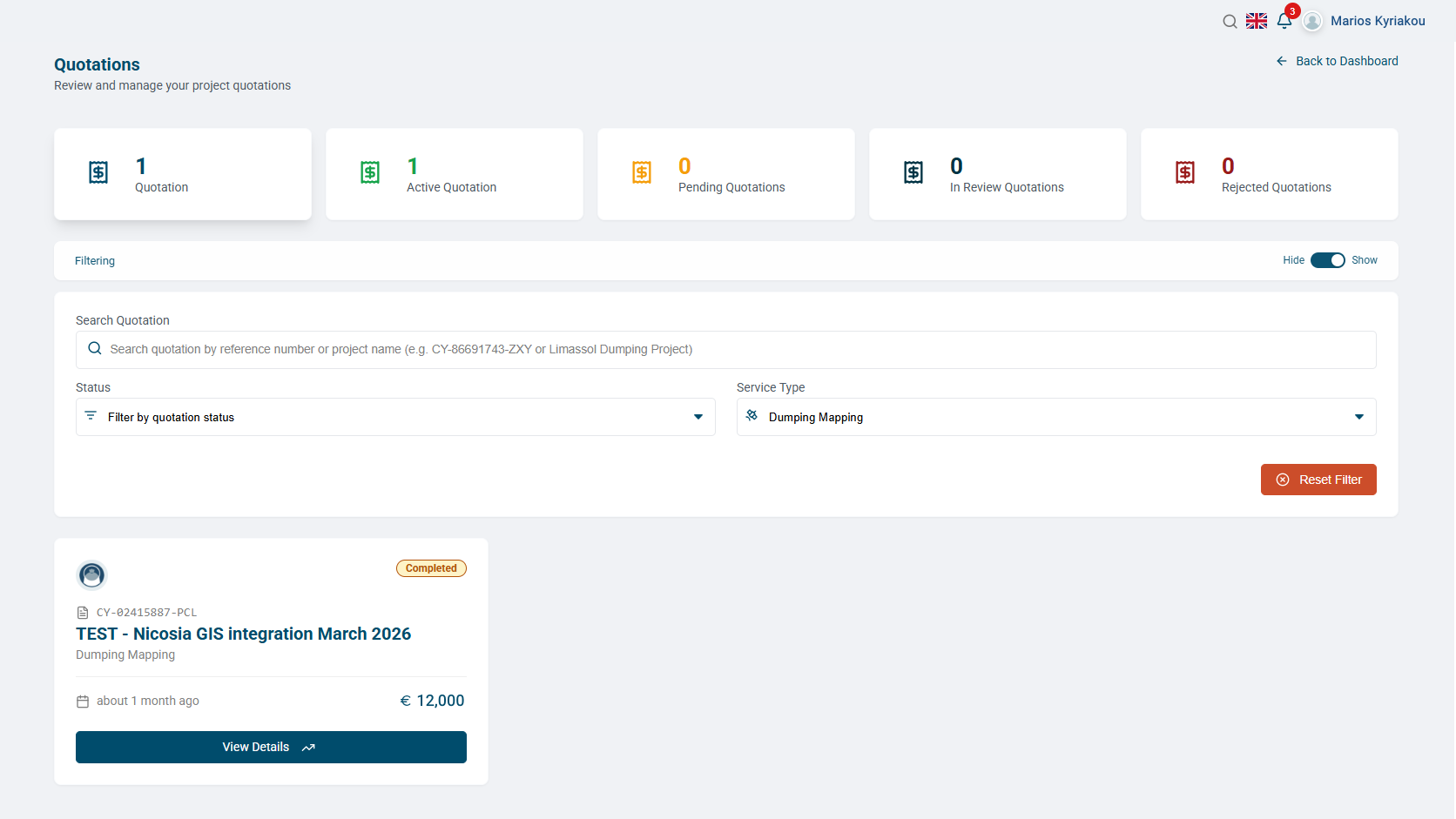
- Open Billing > Quotations.
- Use Search Quotation, Status, and Service Type to find the quotation.
- Select View Details.
- Check the project, reference, status, currency, subtotal, tax, and total.
- Review Issue Date, Valid Until, and Payment Plan.
- Check any installment dates, due dates, amounts, amounts paid, and invoice references.
- Read the notes. Select Download PDF if you need a copy.
Viewing a quotation does not accept or reject it. Those actions depend on the quotation’s status and your access.
Review transactions
- Open Billing > Transactions.
- Review the summaries for business volume, paid amounts, discounts, credit, and outstanding balance.
- Use Search, Status, Payment Method, and the date controls to find an entry.
- Check its project, invoice, date, amount, payment method, and status.
- Open the row’s Actions menu for Transaction Details, Invoice Details, Quotation Details, or Ledger.
Compare the quotation with recorded transactions. A quotation or project request alone does not confirm receipt of payment or project activation.