Select your area of interest
Define your project’s coverage by selecting a predefined area or drawing a boundary on the map.
Select the project service and country, and decide which area the service should cover.
Choose a predefined area when an available administrative boundary matches your needs. Use manual selection for a custom boundary.
Choose a predefined area when an available administrative boundary matches your needs. Use manual selection for a custom boundary.
Open area selection
- In project setup, open Select Area of Interest.
- Check Selected Service and Selected Country.
- Choose Predefined Area Selection or Manual Area Selection.
Select a specific predefined area
- Choose Predefined Area Selection, then Specific Area.
- Select the District or Region of your Area of Interest.
- Review the available municipalities under Predefined Polygons and select the area that matches your project.
- Check the boundary area in the table before continuing.
Changing the district or region clears previously selected polygons. Select the required area again and review its boundary.
Select a whole country
Choose Predefined Area Selection, then Whole Country. Check the country before continuing. This option uses its predefined country polygon.
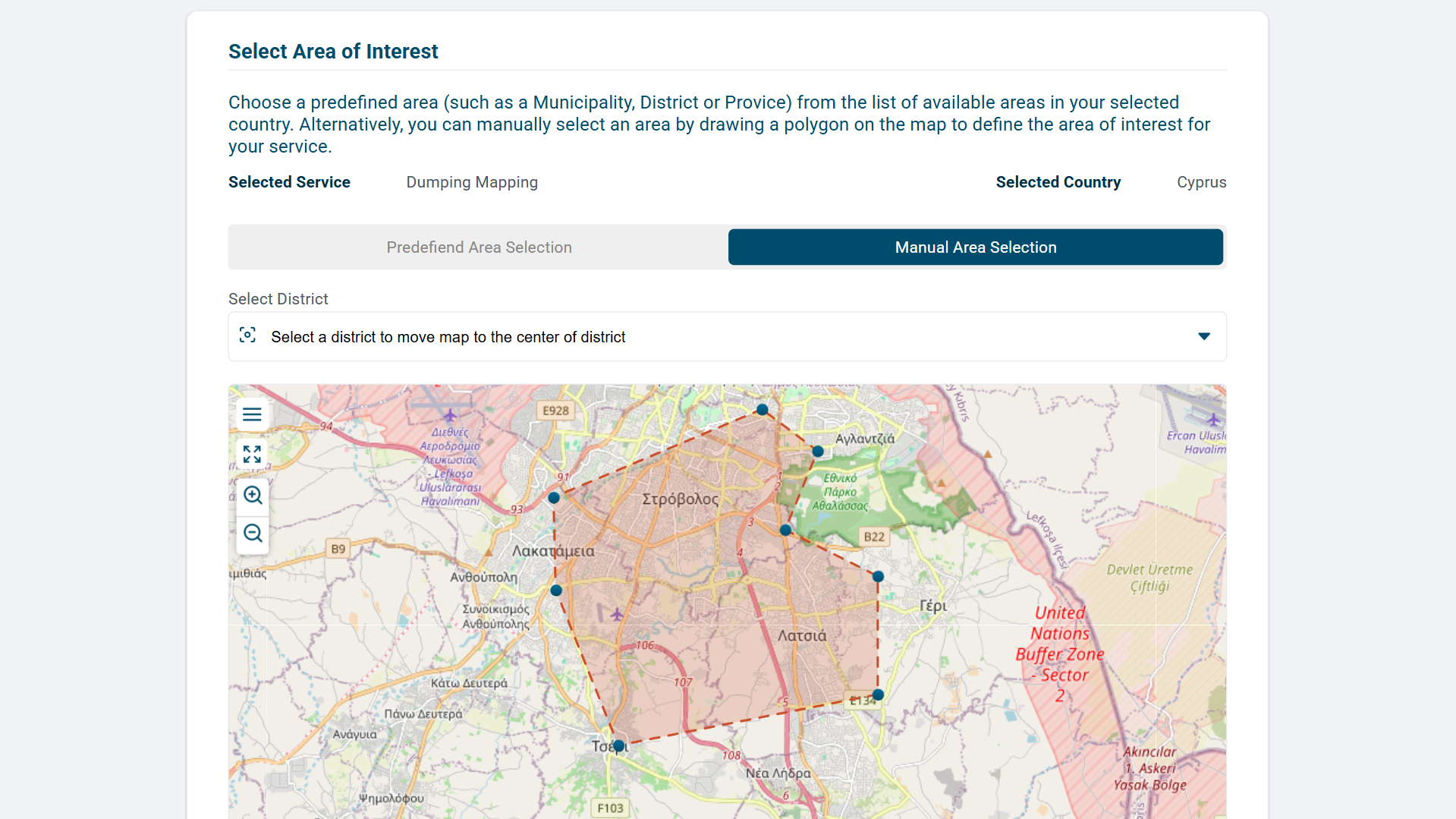
Draw a manual area
- Choose Manual Area Selection.
- Navigate to the target area and zoom in to identify its boundary and landmarks.
- Use the drawing controls to trace and complete a polygon around the area.
- Confirm Total Area in sq km and the Latitude and Longitude of each point of the polygon by clicking on the Polygon Data on the map.
- Give the polygon a clear, recognizable name.
- Check that all required locations are inside the boundary and that unrelated areas are excluded.
- Correct the boundary or resolve any validation message before continuing.
Your selection becomes the project’s geographic scope. Review it again on the project summary before submitting the request.