Complete your profile
Summary:
Add or review your personal, account, career, education, and contact details.
Before you start:
Sign in to the account you want to update.
Review your profile
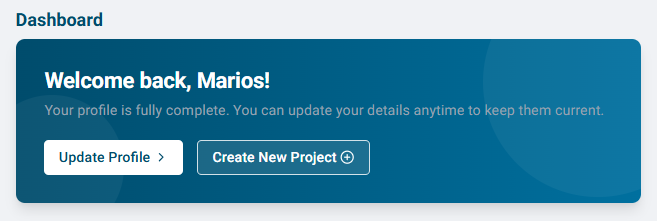
- Select Complete Profile or Update Profile on the welcome screen, or open your profile through Profile in the sidebar or Profile Settings in the account menu.
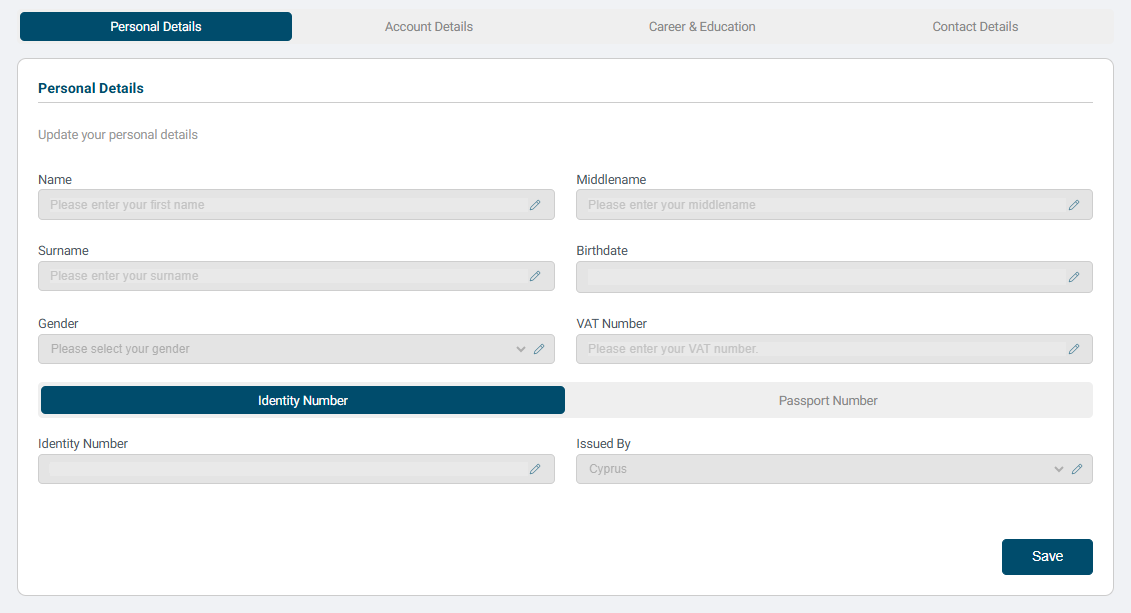
- Open Personal Details. Review your name, middle name, birthdate, gender, VAT number, and other fields relevant to your account. Use the edit controls provided to update a field.
- Open Account Details to review your username and email address. Use the dedicated controls for password changes or two-factor authentication, where available.
- Open Career & Education to review your job title, industry, education level, and field of study.
- Open Contact Details to add or review your phone numbers and addresses.
- Apply changes using the controls provided and check the saved values before leaving.
Add a profile photo
- Select Upload below the account image.

- Choose an image from your device. The upload starts automatically and replaces the default account icon.
- Check that the new photo appears on your profile.
Complete required fields and add optional details when relevant. Review project customer and billing details separately during project setup.