Filter incidents
Summary:
Narrow the detections in a project and understand the scope of the results.
Before you start:
Open the project’s Incidents workspace.
Search for or filter incidents
- Confirm the project and choose Map or List view.
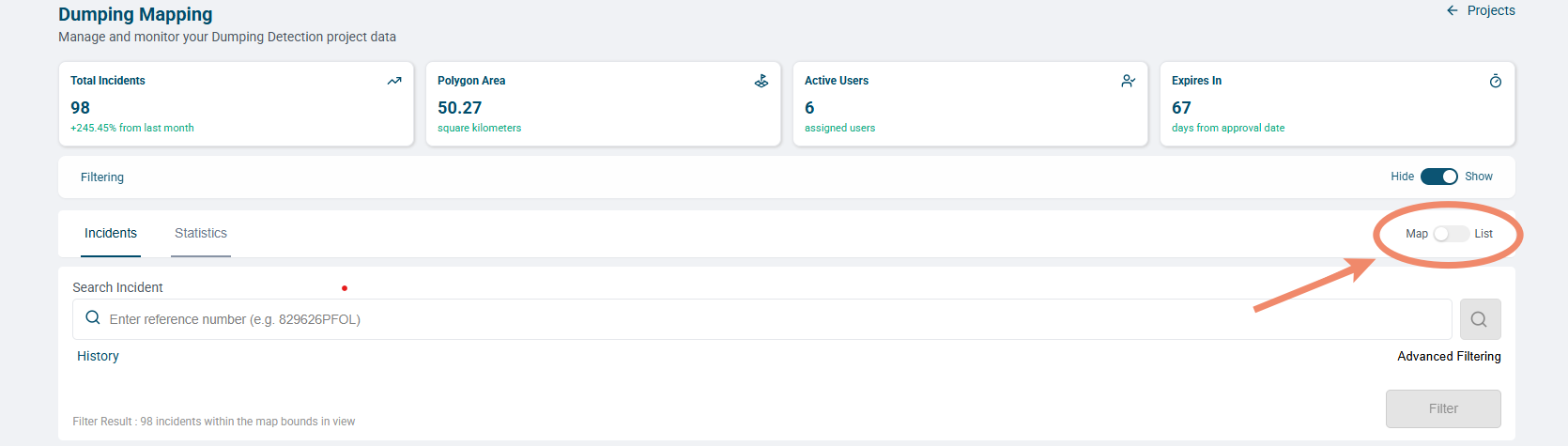
- Use the Filtering switch to show the filter area if needed.
- For a known reference, use Search Incident. If advanced controls disable this field, close Advanced Filtering to return to simple search.
- For a broader search, open Advanced Filtering.
- Choose an Incident Type, such as Dumping Site, Definite Dump, Likely Dumping, Litter, or Construction Materials.
- Use Actions to select a work stage, such as Assigned, Investigated, Reported, Cleaned, or a pending assignment, investigation, report, or cleaning category.
- Review Start Date, End Date, and Filter by Size. Check the size range in square meters.
- When Filter is enabled, select it to apply the criteria, then review Filter Result.
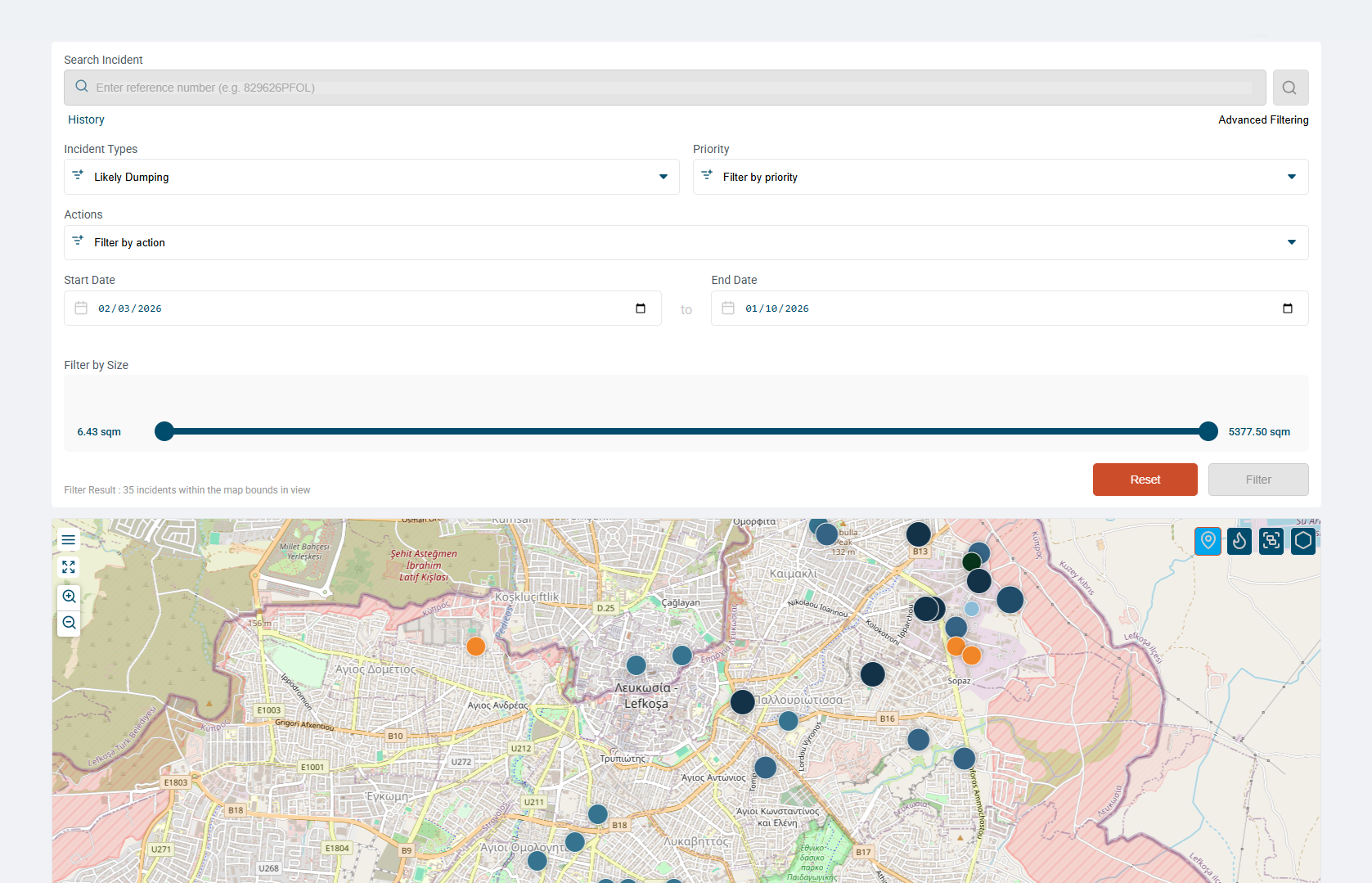
- Open a matching incident to confirm its details.
In map view, the result count covers the visible map bounds. A smaller count does not necessarily mean that incidents have been removed.
Revisit an incident
Use History to return to recently viewed records. Navigation history is separate from the Visited indicator used to record a physical site visit.