Give an existing user access to a project
Summary:
Assign an existing user to a project and review their project role.
Before you start:
You need permission to manage project access. Confirm whether the person is already registered in your account’s user list.
Assign an existing user
- Open User Admin and find Quick Assign User.
- Select the person and complete the project and role choices shown.
- Check the person, project, and role, then select Assign User.
- Open Manage Assignments to review the project association.
Review or change a project role
- In Manage Assignments, choose the project in Select Project. Use Search Projects to find it if needed.
- Review the users and roles shown.
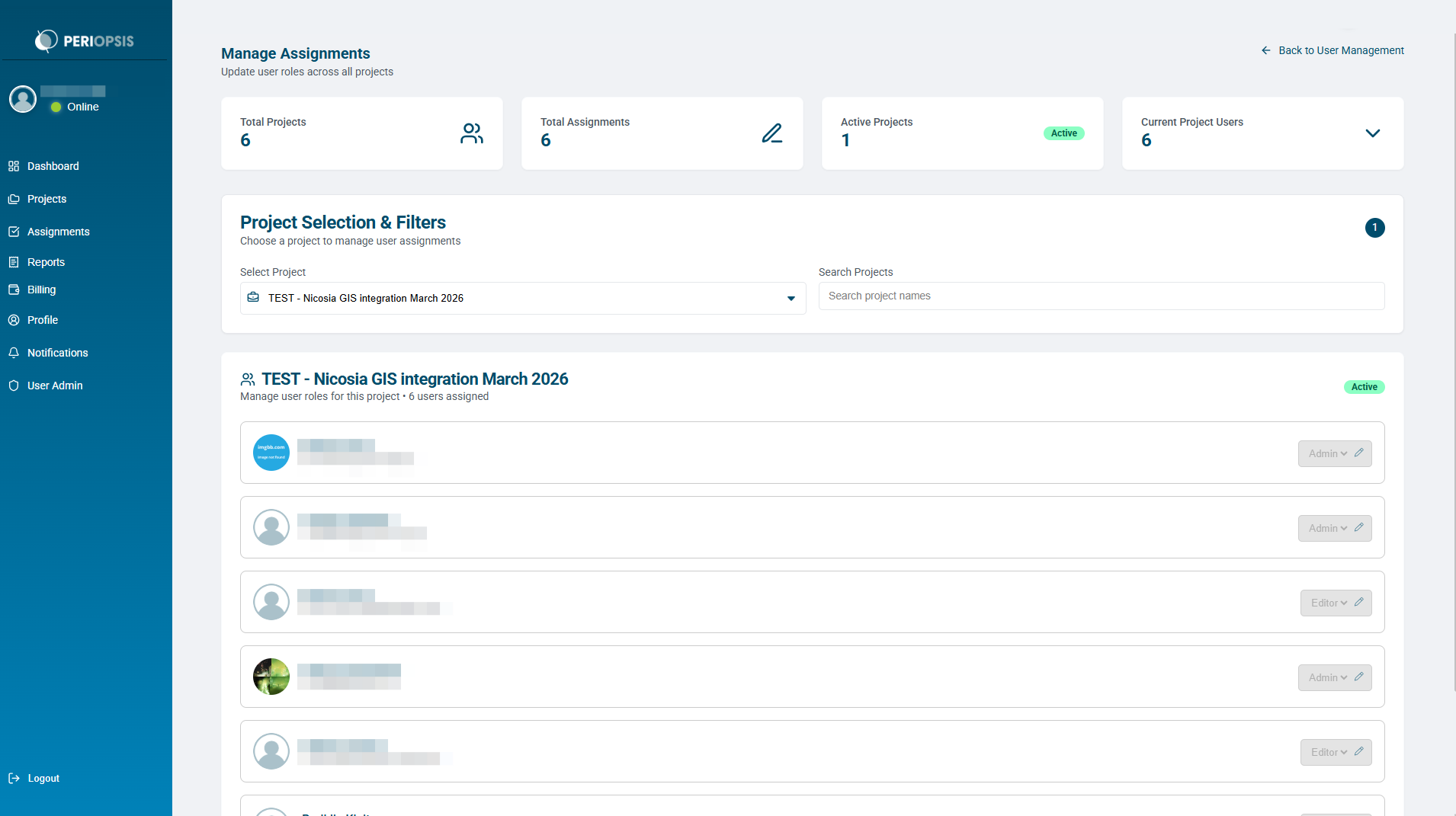
- If role editing is available, select the intended role and review the change.
- Select Save All Changes to apply the updates. Use Reset All Updates to discard pending edits.
If Quick Assign User is empty
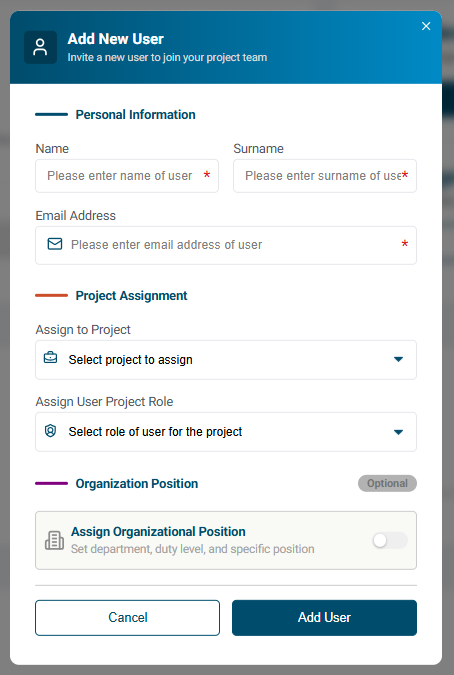
Check Manage Assignments separately. Its project members may differ from the people available in Quick Assign User. If the person needs to be added, use Add New User. Do not create a duplicate account to resolve an access mismatch.
A person’s role in one project does not automatically grant the same access to other projects.