Record a completed cleanup
Summary:
Record the actual cleanup date and any useful operation details.
Before you start:
Complete the cleanup and have the actual date available. You need permission to record the outcome.
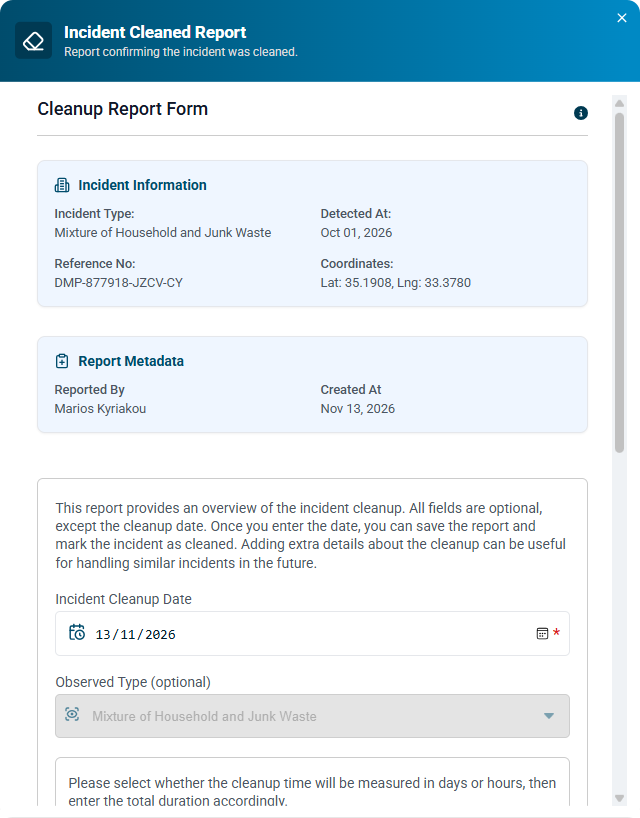
Mark as Cleaned opens Incident Cleaned Report, which contains the Cleanup Report Form. Incident Cleanup Date is required; the other operation details are optional.
Complete the cleanup report
- Open the incident and check its reference, location, and images.
- Select Mark as Cleaned and review the incident information and report metadata.
- Enter Incident Cleanup Date.
- Choose Observed Type if useful to describe the waste found.
- To record duration, choose Hours, Days, or Weeks, then enter the duration in that unit. Add Team size for cleanup if known.
- Add Departments and Equipments by entering each item and selecting its plus button or pressing Enter.
- Add Additional Notes if needed. The field allows 2,000 characters.
- Review the report and select Save. To leave without saving, use the close control in the upper-right corner.
- Reopen the incident to confirm the cleanup outcome. Find the cleanup report under Reports > Cleanup.
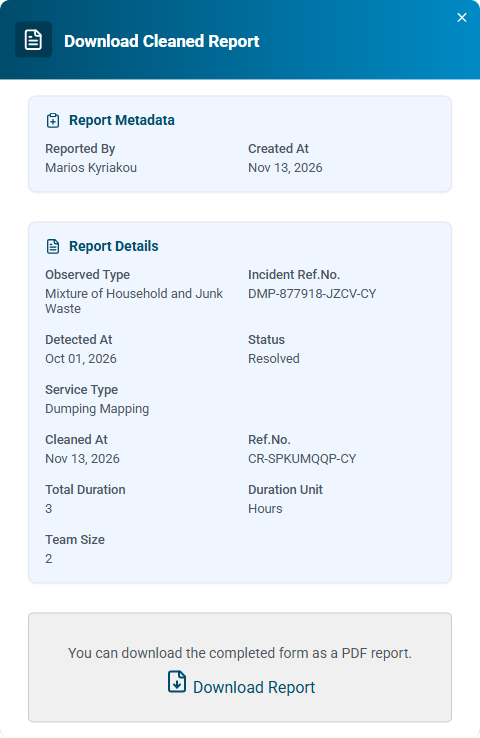
Once saved, you can review the report details or click Download Report for a PDF copy.
Record what happened
Use the actual cleanup date, not the detection date. If the team inspected the site but did not clean it, use the investigation workflow and Visited. If no incident was found, record the appropriate finding rather than a cleanup that did not occur.