Create an investigation report after a site visit
Summary:
Record findings, indicate whether the site was visited, and choose who receives the report.
Before you start:
Have the incident reference, investigation date, findings, and recipient details ready.
Create the report
- Open the incident and select Investigation Report.
- Check Incident Information and the report metadata.
- Choose Existing/New Project User or External/Non-Project User, depending on the recipient.
- For a project recipient, choose the required Select User Department, Duty Level, and Position are optional and may be filled from the person’s project position.
- Enter the required Investigated At
- Review the title. Add Observed Type, Priority, and Investigator when relevant.
- Select Visited only if the location was physically visited. Add Cleanup Date if you have an estimate.
- Enter findings in Investigation Report Details, if needed. The field allows 2,000 characters.
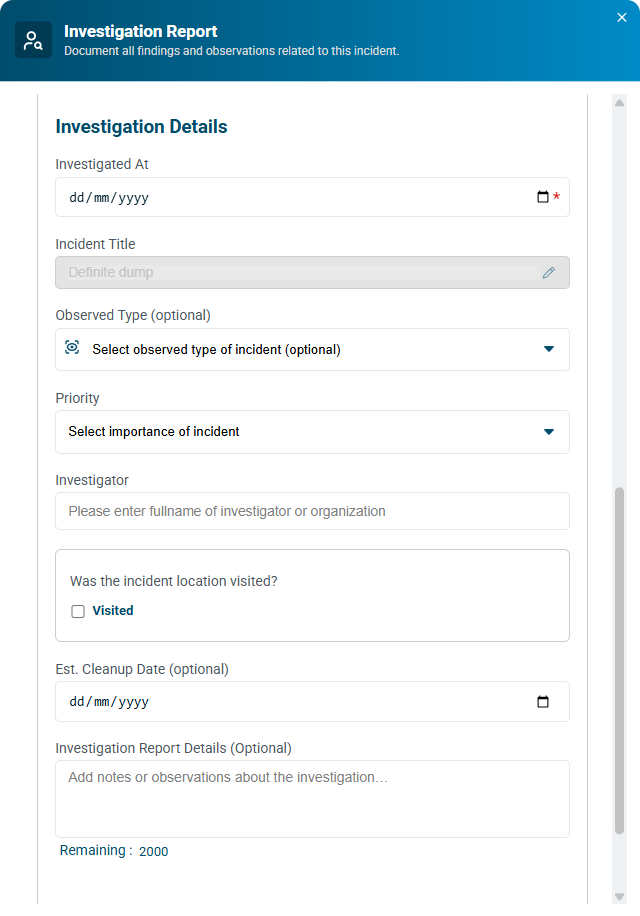
- Review the recipient and report, then select Send Report. Select Cancel to leave without sending.
Once submitted, you can review the report details or click Download Report for a PDF copy.
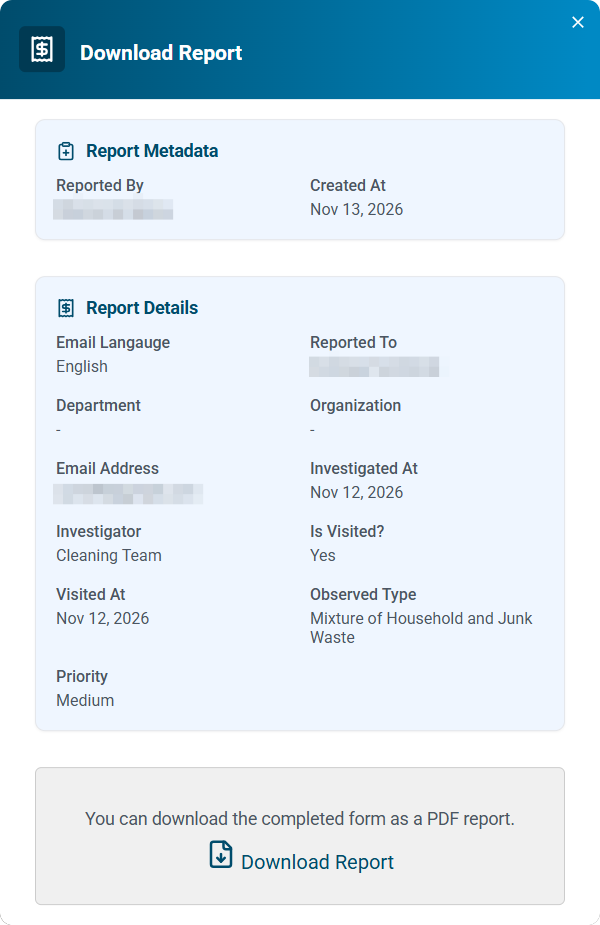
You can also check the incident and Reports > Investigation for the result. Sending a report, the recipient reading it, and completing cleanup are separate events.
Keep investigation and cleanup separate
A site visit may establish what is present without removing it. Record the visit with Visited and use Mark as Cleaned only after cleanup. An estimated cleanup date is not a completion date.