Assign a cleanup incident to a team member
Assign responsibility for an incident and provide the instructions needed for follow-up work.
You need permission to assign incidents. Open the correct project and decide who should handle the work.
Assign to a project user
- Open Projects, select Open for the project, and open the incident from the Map or List view.
- Check its reference, location, description, images, priority, notes, and existing assignee.
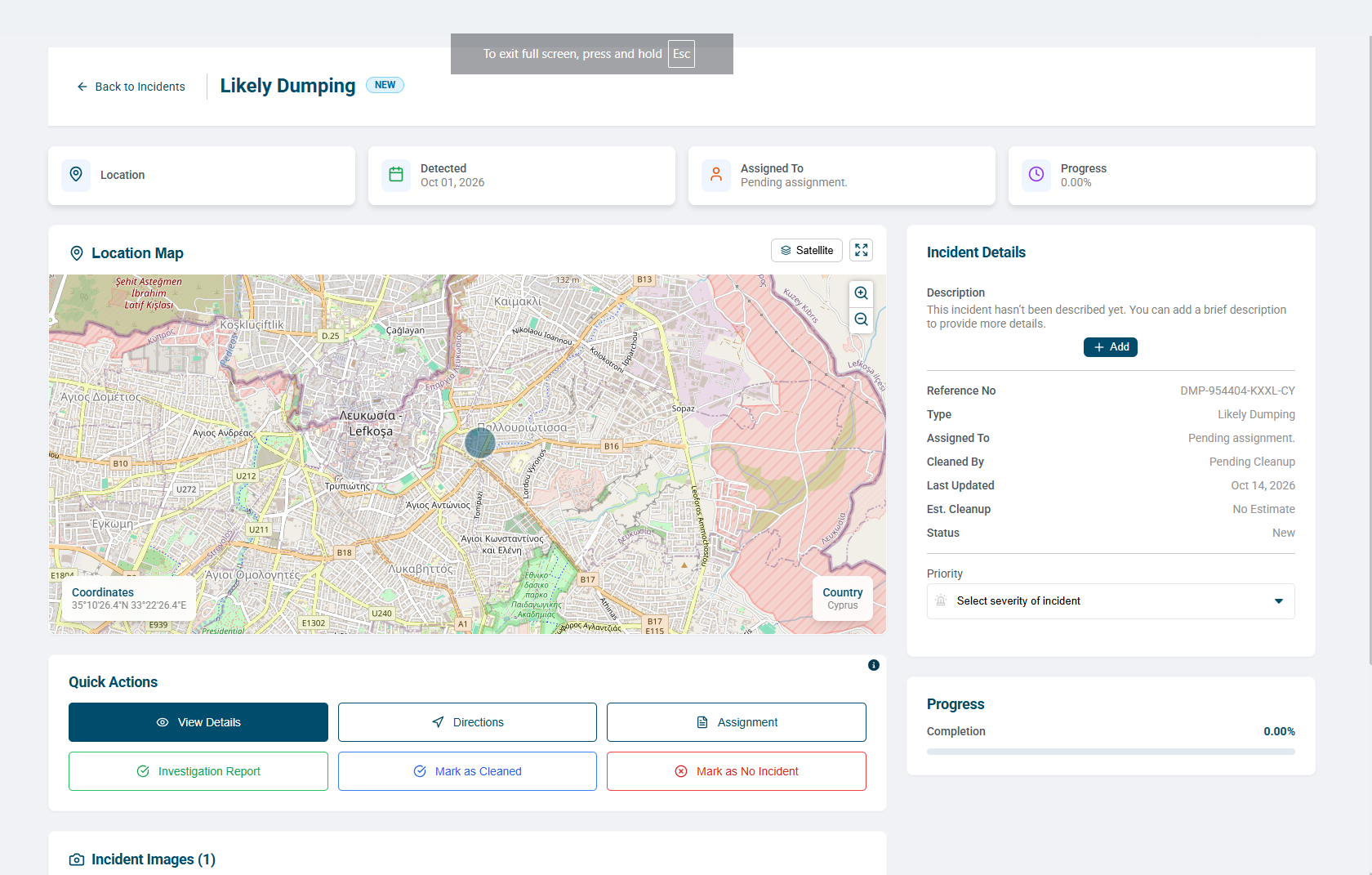
- Select Assignment to assign an incident to a team member.
- In the pop-up window, select Existing/New Project User to assign the incident to a user who is already registered on the portal.
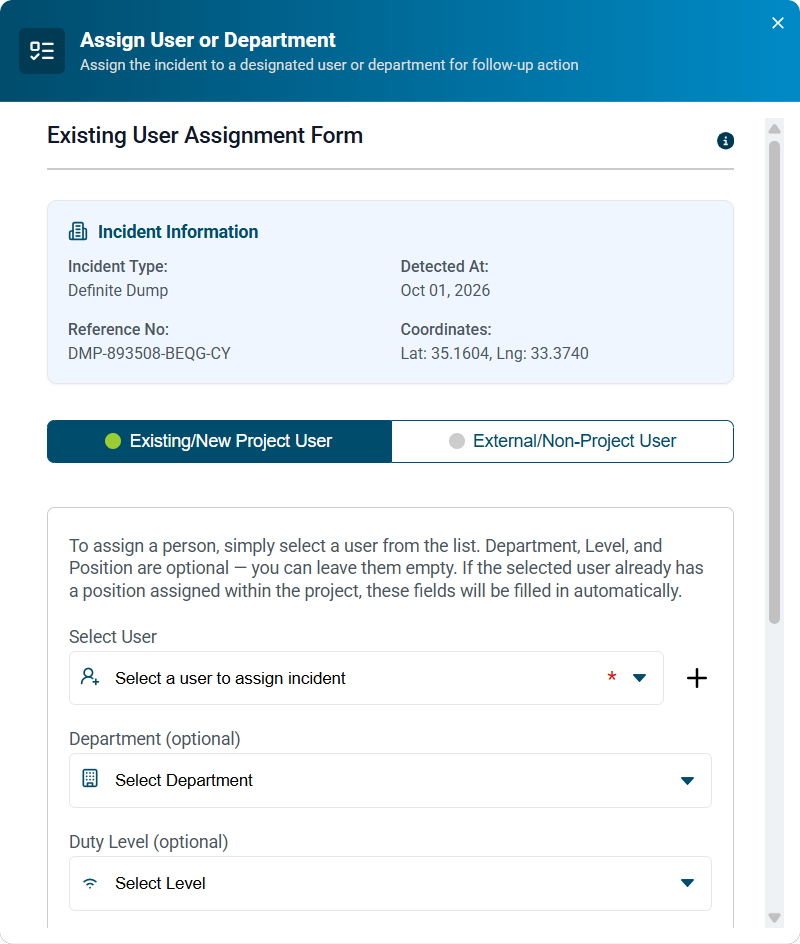
- Choose the person in Select User. If membership is missing, use Add New User to Project, Add or Assign Users where shown, or User Admin to arrange access first.
- Review the optional Department, Duty Level, and Position They may be filled automatically from the person’s project position.
- Add instructions in Message/Report, if needed. The field allows 1,000 characters.
- Check the recipient and incident, then select Assign User.
- Confirm the assignee on the incident page and review the assignment under Assignments.
Assign to an external recipient
In the same pop-up window, choose External/Non-Project User instead.
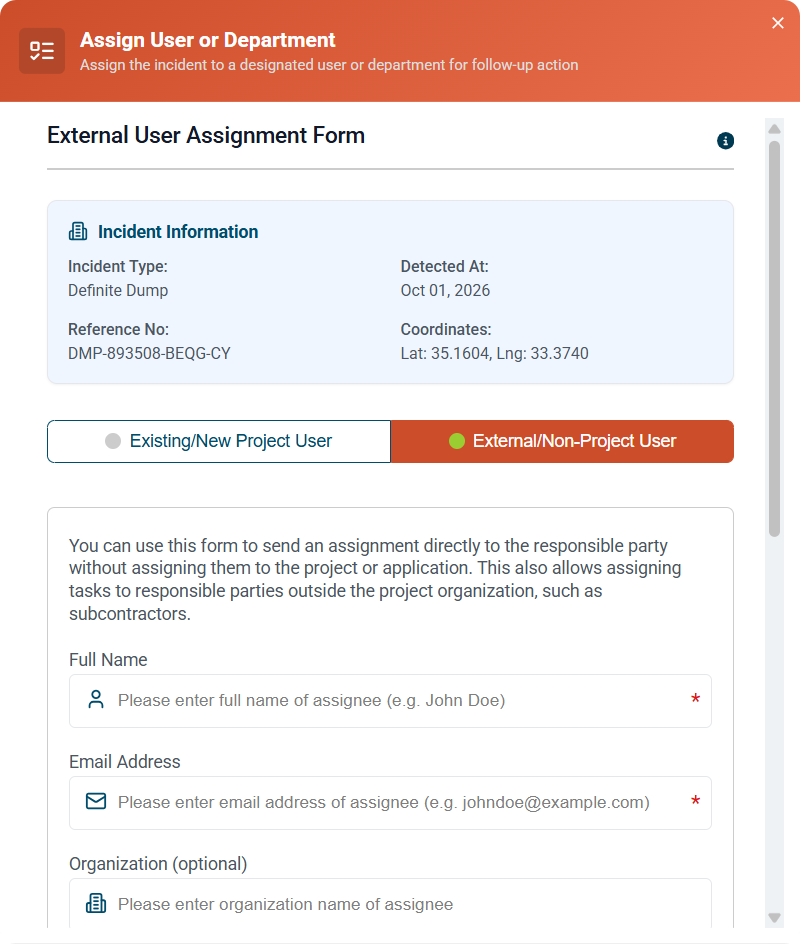
Enter the required Full Name and Email Address. Add optional organization, department, and message details as needed.
Choose Email Language if needed. If no language is selected, the form uses the current app language. Check the address before submitting.
This route sends the assignment without granting project or application membership. An external assignment is not a user invitation.
Track progress
Ask the assignee to open Assignments or find the incident in the project. Review the recorded status and results; an assignment alone does not confirm that the work is complete.